How to Add PP2Wiki to a Page
Open a Confluence Page
Open any Confluence page where you want to add a data table, and click Edit.
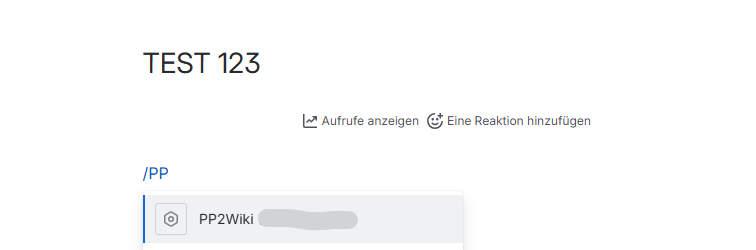
Screenshot: Confluence page in edit mode showing where to add PP2Wiki macro
Insert the Macro
- In the editor, type a forward slash:
/ - Type
PP2Wiki(or just search for it) - Click the PP2Wiki macro from the dropdown
Configure the Macro
Fill in the configuration panel with the following:
📋 Required Settings
| Setting | What to Enter | Example |
|---|---|---|
| Entity Logical Name | The name of the Dataverse table you want to display | account, contact, lunicrm_projekt |
| Columns | Field names to display, separated by commas | name,email,createdon |
🏷️ Optional Settings
| Setting | What to Enter | Example |
|---|---|---|
| Column Headers | Display names for columns (if different from field names), separated by commas | Name,Email,Created On |
| Dataverse Environment (Optional) | Specific Dataverse environment URL for this macro instance. Leave empty to use the admin default environment. | https://orgname.crm.dynamics.com |
| Show Debug Information | Yes = shows technical info (useful if something goes wrong) No = clean view (recommended for end users) |
No |
Publish
Click Publish to save your page. The data table will now appear!
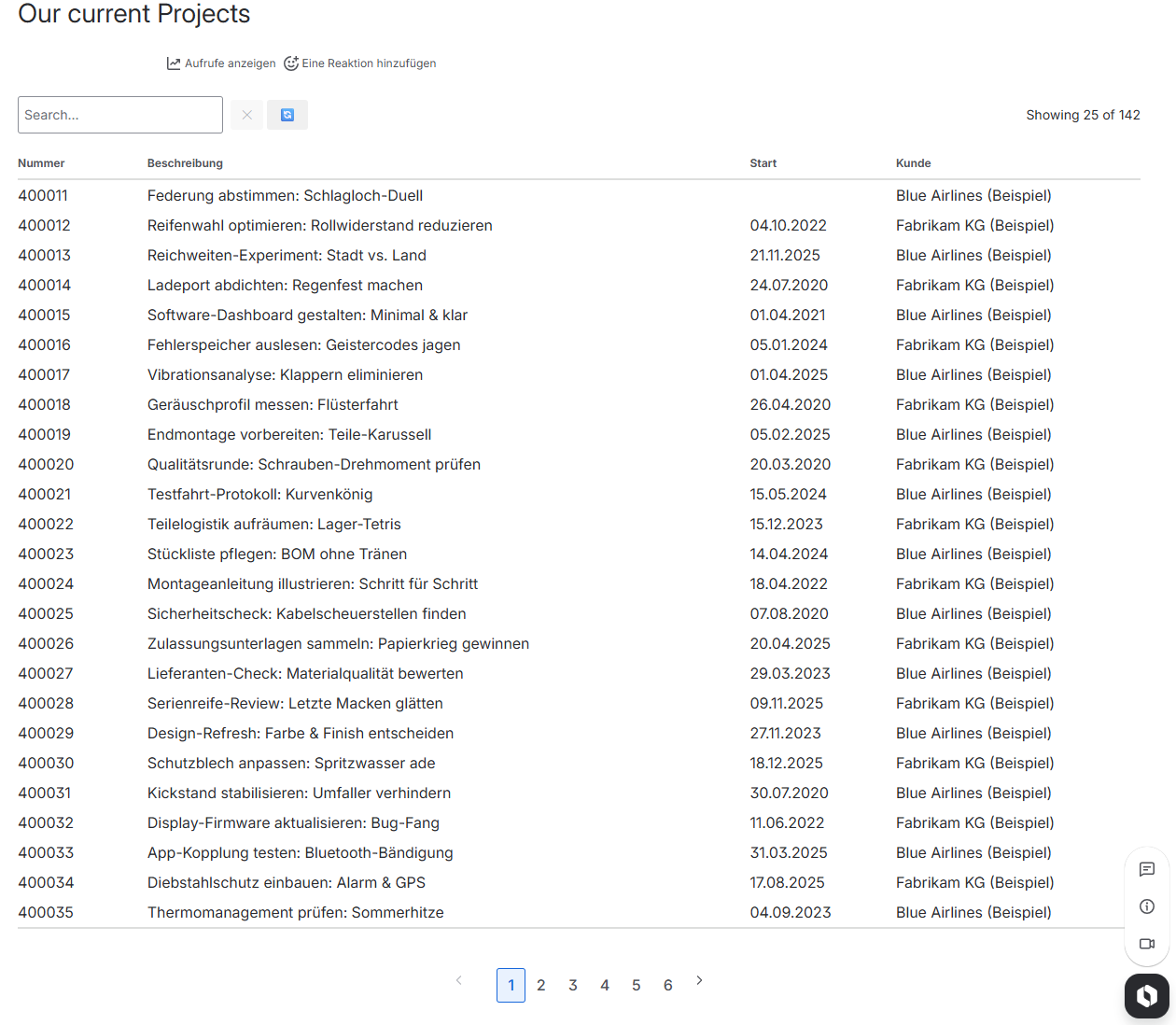
Screenshot: Published page showing PP2Wiki data table with Dataverse records
Using the Data Table
🔍 Search
A search box appears above the table. Type any text to filter the data in real-time. For example, search for a company name or contact name.
↕️ Sort
Click on any column header to sort by that column. Click again to reverse the sort order.
📊 View Data
The table shows your Dataverse data with one row per record. If a column contains a lookup (like "Owner"), it shows the formatted display value.
Common Examples
Example 1: Display All Accounts
Entity Logical Name: account
Columns: name,revenue,ownerid
Column Headers: Company Name,Annual Revenue,Owner
This shows a list of all accounts with their revenue and owner.
Example 2: Display Recent Contacts
Entity Logical Name: contact
Columns: fullname,email,phone,createdon
Column Headers: Full Name,Email,Phone,Created On
This shows a list of contacts with their contact info and creation date.
Example 3: Display Custom Projects
Entity Logical Name: lunicrm_projekt
Columns: lunicrm_name,lunicrm_status,lunicrm_projectmanagerid
Column Headers: Project Name,Status,Project Manager
This shows a list of custom projects (the exact field names depend on your Dataverse setup).
Troubleshooting
❌ "No data to display"
Possible reasons:
- Entity name is wrong – Check the exact name of your Dataverse table (case-sensitive)
- Table is empty – The Dataverse table might not have any records
- Column names are wrong – Field names must match exactly
Solution: Check with your admin or Dataverse expert for the correct entity and field names.
❌ "Error: Column 'X' does not exist"
Possible reasons:
- Field name is misspelled – Field names are case-sensitive
- Field doesn't exist in this table – The column might be on a different table
Solution: Remove the incorrect column name and try again.
❌ "The field 'X' in Order by (OData) does not exist"
Reason: The value in Order by (OData) references a field that does not exist in the selected entity.
Solution: Correct or clear Order by (OData).
❌ "The field 'X' in Filter (OData) does not exist"
Reason: The value in Filter (OData) references a field that does not exist in the selected entity.
Solution: Correct or clear Filter (OData).
❌ Optional Dataverse URL not found
Reason: The URL in Dataverse Environment (Optional) is not configured by your admin.
Solution: Clear the optional field to use default environment, or ask your admin to add that URL in PP2Wiki configuration.
❌ I need to change a Dataverse URL that already exists
Info: Existing environment URLs are fixed identifiers in admin configuration.
Solution: Ask your admin to duplicate the environment, set the new URL in the copy, then remove the old entry.
❌ "Authorization failed"
Possible reasons:
- Dataverse application user missing or no Security Role assigned
- Insufficient privileges – the assigned role does not allow reading the selected table/columns
- Admin configuration issue – credentials/permissions/consent are incomplete
Solution: Ask your Confluence admin to test the connection and verify the Dataverse application user + Security Role.
❌ I see an error message
If you're not sure what it means:
- Check the error message text for clues
- Try refreshing the page
- Ask your Confluence admin for help (they can see more details if debug mode is enabled)
Tips & Best Practices
- Use helpful column headers: If your field names are technical (like "ownerid"), create user-friendly headers (like "Owner").
- Don't show too many columns: Limit to 5-8 columns for readability. Tables with too many columns become hard to read.
- Test first: Before sharing a page, check that the data appears correctly and you can search/sort it.
- Use one macro per page: If you need multiple tables, consider adding them to separate pages or sections.
- Keep data fresh: PP2Wiki always shows the latest data from Dataverse. No need to manually refresh anything!
Need More Help?
If you can't find the answer here:
- Ask your Confluence admin – they can help with configuration issues
- Check with your Dataverse administrator – they can help with field names and entity names
- Refer to the Admin Setup Guide if something seems misconfigured